
New Member Registration & Account Reset Procedures Before Your Initial Sign-In
If you are joining as a new member, or if you registered before March 2026 (an account reset is required before your first sign-in to the new system), please follow the steps below.
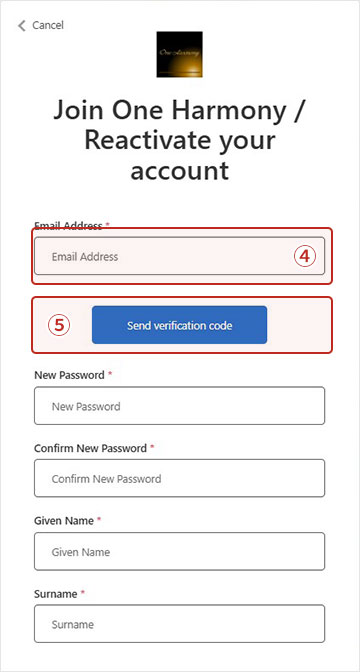
Steps 1&2: Enter Your Email Address
① Enter your email address
- New Members: Please enter your preferred email address.
- Members registered before March 2026: Please enter your currently registered email address.
Please note that if you reset your account with a different email address, your current membership status and point balance will not be transferred correctly.
② Click “Send Verification Code”
Step 3: Receive Your Verification Code
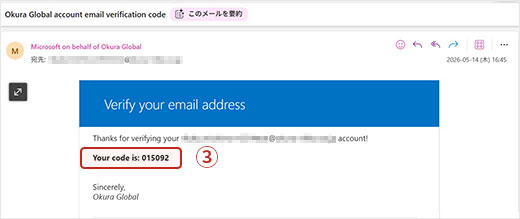
A 6-digit verification code will be sent to the email address you entered during Step 1.
If you do not receive the code, please ensure that your email settings allow messages from the domain “@microsoftonline.com“.
Additionally, please check your spam or junk mail folder to see if the message was filtered there.
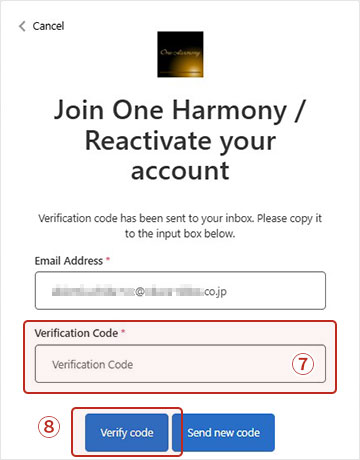
Steps 4&5: Enter and Verify the Code
④ Enter the 6-digit code received in your email.
⑤ Click “Verify code.”
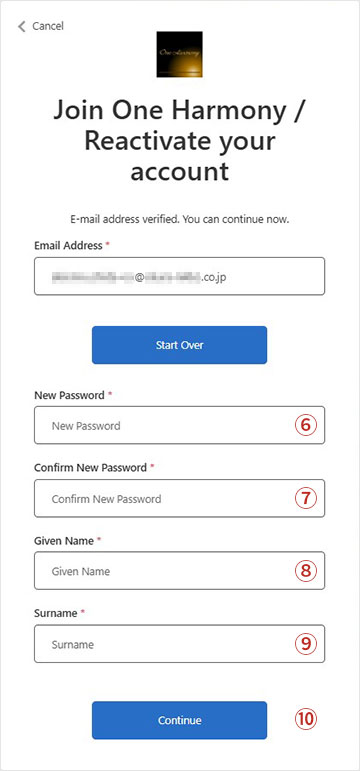
Steps 6-10: Set a New Password and Enter Your Name
⑥ Enter a new password.
Password requirements:
・Between 8 and 64 characters.
・Must contain at least three of the following: lowercase letters, uppercase letters, numbers, and symbols.
⑦ Re-enter the password you typed in Step ⑨.
⑧Enter your First Name
⑨Enter your Last Name (Family Name)
⑩Click “Continue”.
*If the message “A user with the specified ID already exists” appears, please proceed to “Sign In” instead of “Reset Account” or “Sign Up”.
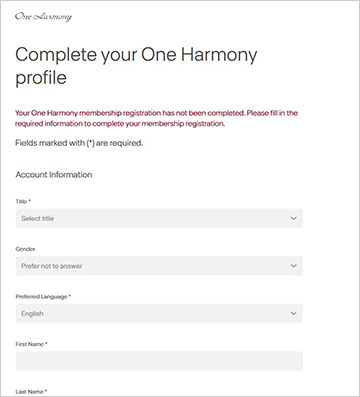
Step 11: Complete Your Profile
Once the screen changes, please review the displayed information (such as your address and date of birth) and fill in the remaining required fields:
・Title
・Gender
・First Name in Kanji (Optional)
・Last Name in Kanji (Optional)
・Phone Number
・Date of Birth (Optional)
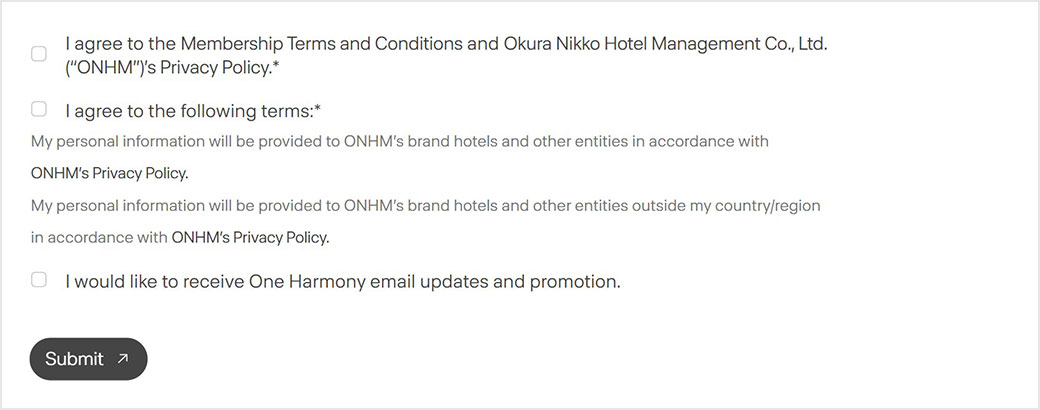
Step 12: Agree to the Privacy Policy and Terms
Review the three items, check the boxes, and click “Submit.”
*Please note that the first two checkboxes are required.
If you are unable to sign in or reset your password successfully, please try using a different browser or an incognito/private window.